
Waypoints and Planned Stops
Mark camp, fuel, water or a hazard on a ride's map, and let the leader plan numbered stops for the whole group.
Waypoints are named spots you drop on a ride's map: camp, fuel, water, a viewpoint, a hazard or parking. Your own waypoints are only for you. The ride's leader can also share waypoints with everyone on the ride, and plan numbered stops the whole group will make.
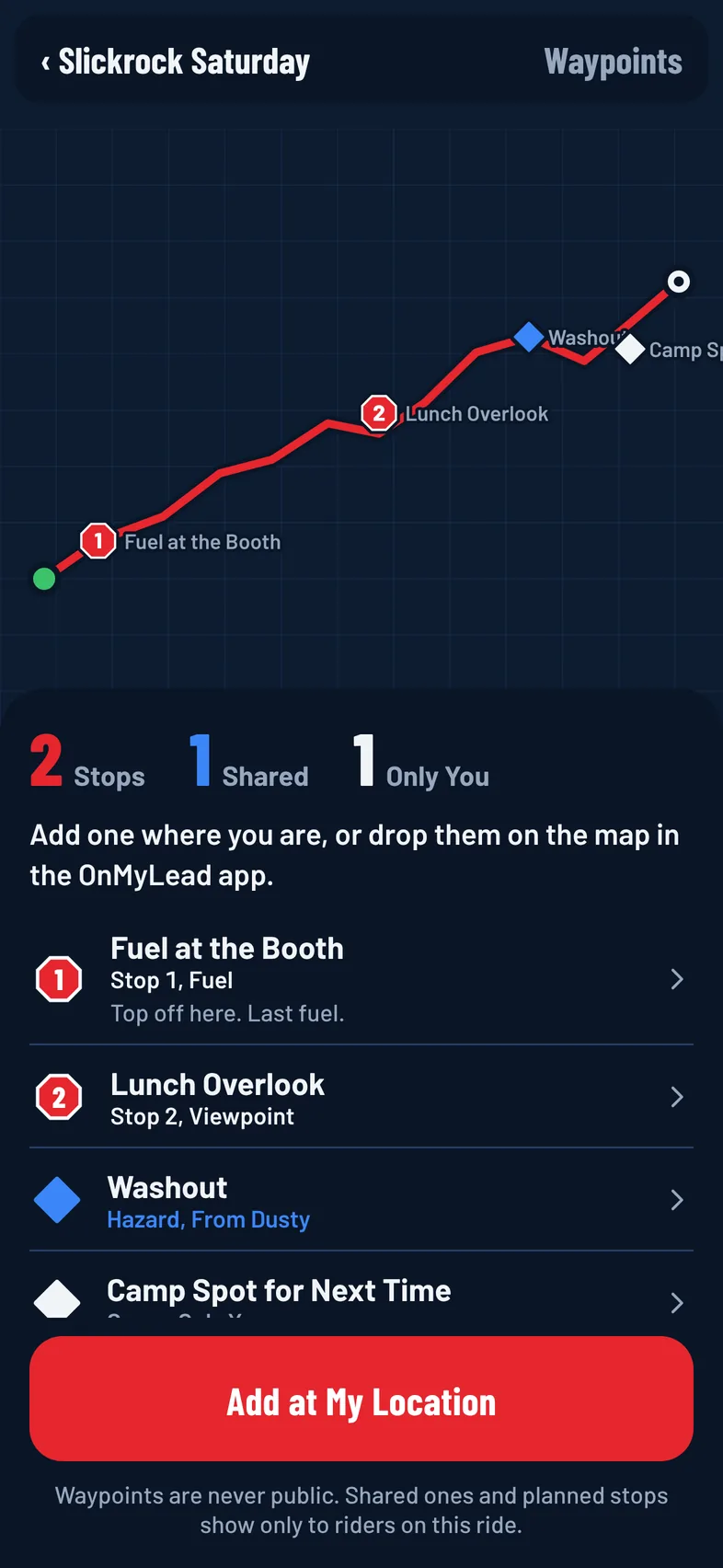
Waypoints are never public. Shared ones and planned stops show only to riders on that ride.
Who Sees What
- Your waypoints: only you see them, unless you can share (below).
- Shared waypoints: the leader or an organizer can share a waypoint with everyone on the ride.
- Planned stops: always shared. Every rider sees them numbered on the map, in order.
The leader is the rider with the Leader role, or the organizer when nobody has it. See Leader, Sweep and Tail Gunner.
You need to have joined the ride to add or see its waypoints.
Add a Waypoint
- Open the ride and tap the Map tab.
- Under Waypoints, tap Add a Waypoint (or Open Waypoints Map if there are some already).
- Press and hold the map where you want it (click it on onmylead.com). To mark where you're standing, tap Add at My Location instead.
- Pick what it is: Spot, Camp, Fuel, Water, Viewpoint, Hazard or Parking. The name fills in for you.
- Change the Name if you like, and add a Note (Optional).
- If you're the leader or an organizer, choose who it's for under What It Is (see below).
- Tap Save Waypoint.
In Ride Mode, tap Add Waypoint to drop one where you are, or press and hold the map. See Ride Mode.
Names can be up to 60 characters and notes up to 280.
Sharing a Waypoint (Leader and Organizers)
When the leader or an organizer adds a waypoint, they choose:
- Planned Stop: the whole ride stops here. Numbered on every rider's map.
- Everyone on the Ride: shows on every rider's map.
- Just Me: only you see it.
New waypoints from the leader or an organizer start as Everyone on the Ride, and you can switch to Just Me.
Plan the Ride's Stops
Planned stops tell everyone where the group will stop for fuel, lunch or camp, and in what order.
- Open the ride and tap the Map tab.
- Under Planned Stops, tap Add a Planned Stop.
- Press and hold the map where the group will stop.
- Pick what it is and give it a name.
- Add a Planned Time (Optional), like "12:30 pm".
- Tap Save Planned Stop.
Stops are numbered in the order you add them. To change the order:
- Tap a planned stop on the map or in the list.
- Tap Move Earlier or Move Later.
The leader or an organizer can edit any planned stop on the ride, even ones someone else added, so the plan carries on if the leader changes.
View, Navigate, Edit or Remove
Tap a waypoint on the map or in the list to open it. You'll see its type, who it's from, the note and its coordinates.
- Navigate: get directions in your maps app. See Directions.
- Edit: change it. You can edit your own waypoints. The leader or an organizer can also edit planned stops.
- Remove: take it off the map. You can remove your own. The leader or an organizer can also remove shared ones. When a shared waypoint is removed, everyone stops seeing it.
On the Website
The waypoints map works on onmylead.com too. Click the map to drop a waypoint, and click a waypoint to open it.
On a tablet held sideways, the waypoint list sits beside the map; swipe it up or tap Hide to fold it.
No Signal
The waypoints you can see are saved on your phone, so they stay on the map without signal. The panel shows Saved on This Phone when that's what you're seeing.
Limits
Each rider can add up to 100 waypoints on a ride. If you reach that, remove one to add another.