
Your Garage
Add your rig or side-by-side with a photo, fill details from the VIN, track every part of the build and see your fuel range.
The Garage keeps your machines in one place: a photo, the details, every part you've added and how far a tank will take you.
Open Your Garage
- Go to the You tab.
- Under Your Gear, tap Garage.
You need to be signed in.
Add a Machine
- Tap Add a Machine.
- Under What Are You Adding?, pick Vehicle or SXS/UTV.
- Tap Choose Photo to add a photo from your library (optional).
On Android, the system photo picker opens, and OnMyLead only gets the photo you pick.
- Fill in a Nickname, or the Year, Make and Model. You need a nickname or a make and model. Trim is optional.
- Add the rest if you like: VIN, Purchase Price ($), Engine Hours and Odometer (Miles).
- Under Fuel and Mileage, enter Tank (gal), any Extra Fuel (gal) you carry and Miles per Gallon. Use your real-world trail mileage, not the sticker.
- Tap Add to Garage.
Fill In Details From the VIN
- Type the 17-character VIN.
- Tap Fill Year, Make and Model From VIN.
- Check the year, make, model and trim it fills in.
If there's no match, enter the details by hand. A VIN is 17 letters and numbers and never uses I, O or Q.
See Your Fuel Range
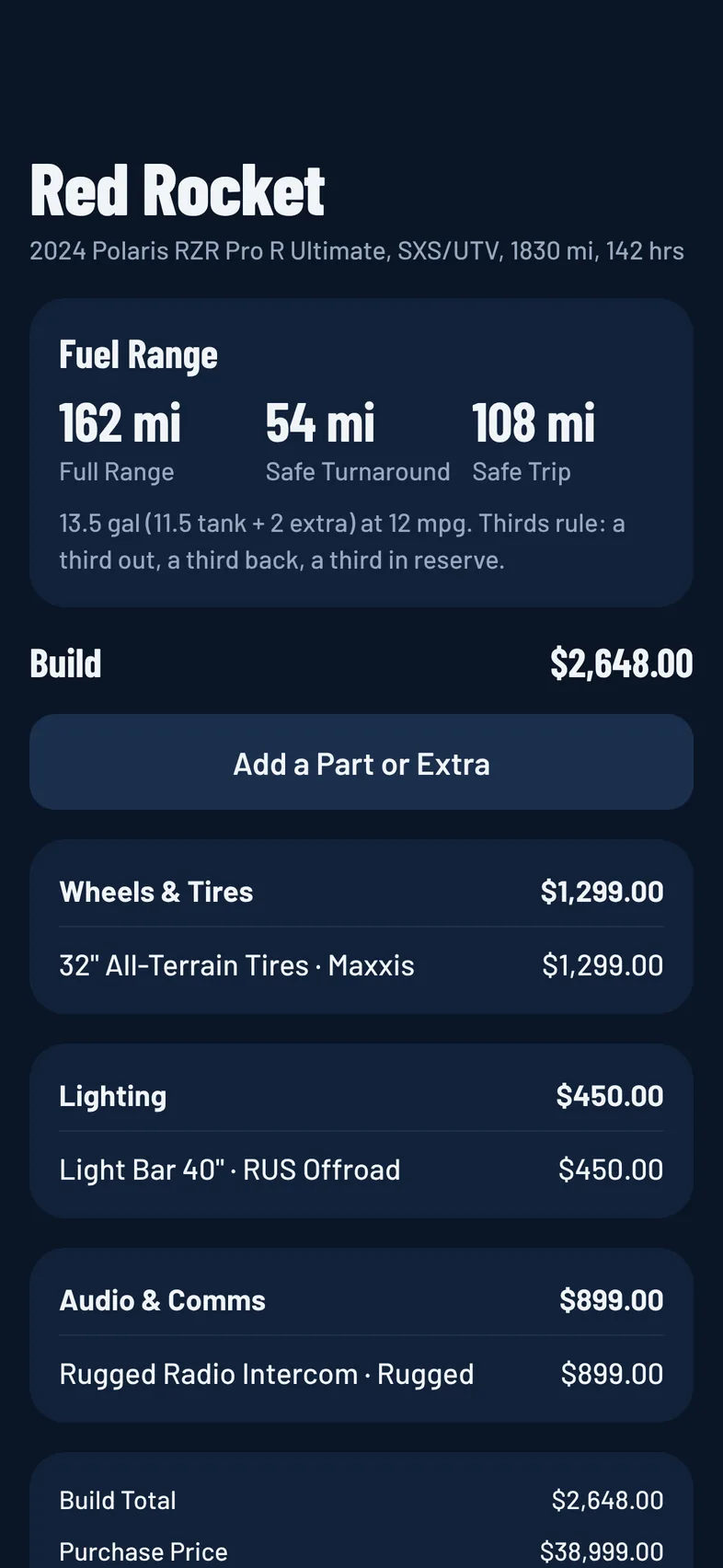
Once a machine has a tank size and mpg, its page shows a Fuel Range card:
- Full Range: how far you can go on your tank plus extra fuel.
- Safe Turnaround: a third of your full range. Turn around by this many miles out.
- Safe Trip: two thirds of your full range, the longest round trip that still keeps a third in reserve.
It uses the thirds rule: a third out, a third back, a third in reserve. If a machine has no range yet, tap Add Fuel Range.
Your Garage also powers the fuel check on a ride. See Fuel Range.
Track Your Build
- Open a machine.
- Tap Add a Part or Extra.
- Pick the Area, like Wheels & Tires, Suspension, Lighting or Recovery.
- Enter the Item, and if you like the Brand, Cost ($), Installed date (like 2026-05-01) and Notes.
- Tap Add.
Parts are grouped by area with a subtotal for each. At the bottom you'll see the Build Total, and if you entered a purchase price, the Purchase Price and All In total.
To change or remove a part, tap it, then tap Save or Remove Item.
Export Your Build
Under Export on a machine's page:
- Build Sheet shares your machine and its parts as text, to send in a message or paste anywhere.
- CSV saves the build list as a spreadsheet file you can send to Files, email or a spreadsheet app.
Edit or Delete a Machine
- Open the machine.
- Tap Edit Machine to change its details or photo, then tap Save Changes.
- Or tap Delete, then confirm. The machine and all its build items are removed.