
Use Ride Mode
The live group map for ride day. See every rider, who is live and who was last seen, where you are on the route, and the one-tap buttons.
Ride Mode is the screen you use on the trail. It puts the whole group on one map, shows how fresh each rider's position is, places everyone along the route, and gives you big one-tap buttons for telling the group what's going on. Ride Mode is free on every plan.
Open Ride Mode
Ride Mode opens once the organizer starts the ride.
- Organizers: on the ride page, tap Start Ride Mode. The ride goes live for everyone and Ride Mode opens.
- Riders: once the ride is live, open the ride page and tap Enter Ride Mode. Riders on the ride also get a notification when the ride starts.
The first time you open Ride Mode on a ride, it asks Share Your Location with This Ride? Pick how long to share, or tap Not Now. You can see the group without sharing, but the group can't see you. See Share Your Location.
What's on the Screen
The Top Bar
- ‹ Ride name: tap it to go back to the ride page.
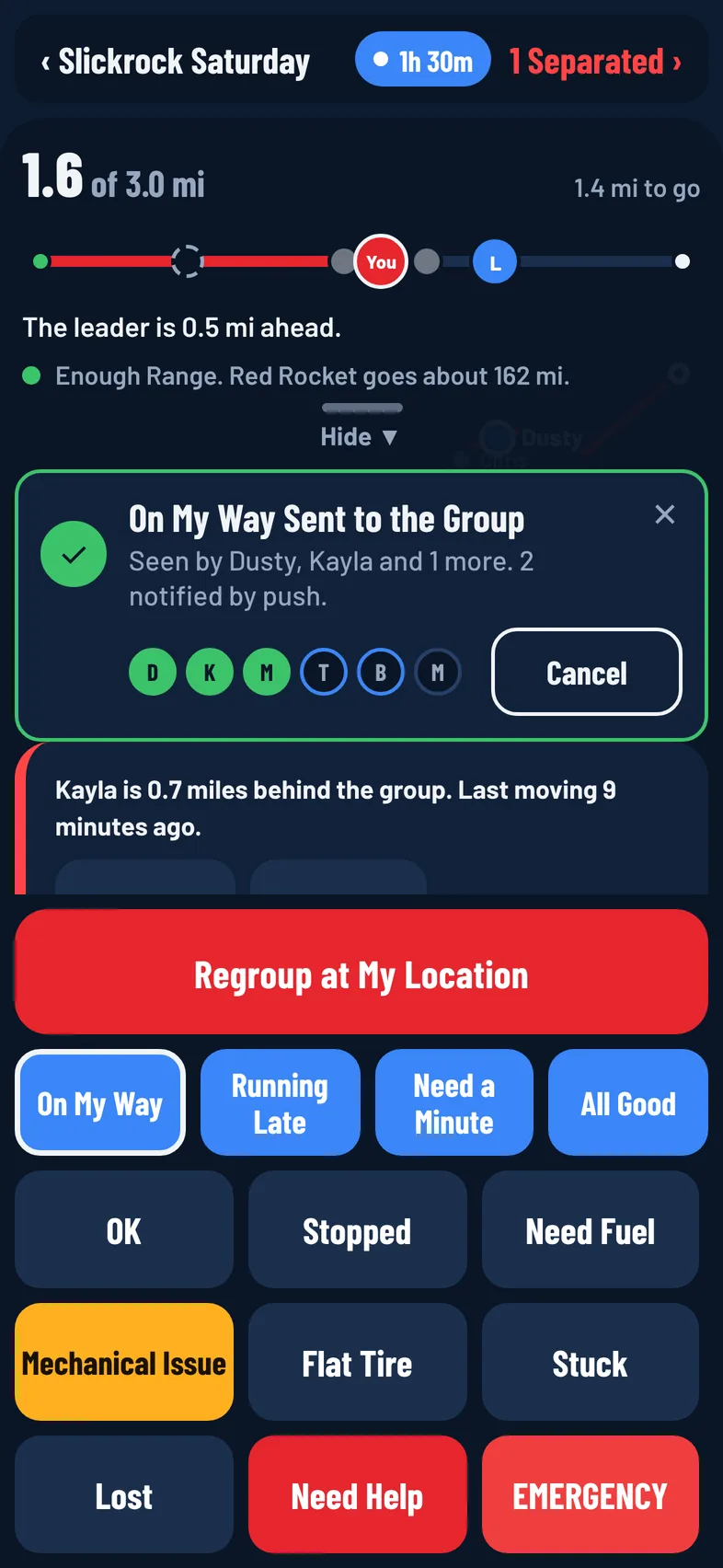
- The sharing pill: shows how long you have left sharing, such as 1h 20m, or On when there's no timer. It says Off when you aren't sharing; tap it to start. While you share, tap it to show Sharing, 1 hr 20 min left with Stop and Hide.
- Together or 2 Separated: green when the group is together, red with a count when Ride Bubble sees riders who have dropped away. Tap it to open the Riders list.
The Map
The map shows the ride's route, waypoints, planned stops and any regroup point. Every rider who is sharing shows as a dot with their ride name beside it. Tap a rider's dot to see their name, whether they're live, and their latest status.
The leader is the one bigger blue dot, so you can find them at a glance.
You don't need to leave Ride Mode to see new riders. Someone who joins the ride while you're on the map appears within a few seconds of starting to share, and a rider whose share ends or who leaves the ride drops off the map within about 15 seconds.
To switch map layers or download the ride's map for riding with no signal, use the layers button on the map. See Map Layers and Offline Maps.
The Bottom Panel
The panel at the bottom holds the route strip, alert cards, the quick replies and the status buttons. See Status Buttons and Quick Replies.
Above the panel are two buttons: Directions (on the left) for Apple Maps or Google Maps, and Add Waypoint (on the right) to mark your spot. You can also press and hold anywhere on the map to drop a waypoint there. See Get Directions and Waypoints and Planned Stops.
On Android, Directions opens Google Maps, and while you share, a Sharing Your Location notification stays in the notification shade. Tap it to come back to OnMyLead. If your phone restarted or the app was updated while you were sharing, opening Ride Mode starts that notification and your sharing again.
Read the Rider Dots
A dot only looks live when the phone behind it is actually checking in. A sharing phone sends its position at least every 15 seconds while it has service, even when it's parked.
| What you see | What it means |
|---|---|
| Solid dot (from version 1.0.3: a white ring, or solid blue for the leader) | Live. The position is less than a minute old. |
| Hollow dot (from version 1.0.3: a thin grey ring) with Last Seen 2 Min Ago | Where the rider was last seen, a minute or more ago. |
| Dashed grey ring with No Signal, 8 Min Ago | Nothing for three minutes or more. Their phone has likely lost service or stopped sending. |
| Faint ring, Not Sharing | The rider is on the ride but isn't sharing their location. |
| Yellow or red ring around a dot | Ride Bubble thinks the rider is separating from the group. |
| Amber wrench on a dot | The rider tapped Mechanical Issue. |
| White arrow on a dot (version 1.0.3 and later) | The rider is moving; the arrow points the way they're heading. |
See Every Rider
Tap Together (or Separated) at the top to open the Riders list. It shows everyone on the ride, the leader first, with Live, Last Seen and an age, No Signal, or Not Sharing. The leader and tail gunner are labeled.
Tap Navigate next to a live rider, or Go to Last Seen for a rider whose spot is old, to get directions to them in your maps app.
See Where You Are on the Route
When the ride has a route, the route strip at the bottom shows the whole route as one straight line from start to finish, with each rider placed by how far along they are. It shows your miles so far, such as 12.3 of 40.1 mi, and how far you have to go. Below the line it tells you where you stand, for example "The leader is 0.4 miles ahead" or "2 riders ahead of you, 1 behind", and warns you if you're off the route.
If you've added your machine in the Garage with its fuel details, the strip also says whether your range covers the route. See Fuel Range.
Fold the Panel to See More Map
Swipe the bottom panel down, or tap Hide ▼ on its handle, to fold it away. Swipe up or tap Buttons ▲ to bring it back. The app remembers your choice.
While the panel is folded:
- Mechanical Issue and EMERGENCY stay on screen.
- Need Help and EMERGENCY calls from other riders stay on screen. The leader, tail gunner and organizers also keep Mechanical Issue calls.
- Other alerts are counted in a badge on Buttons ▲.
On a tablet the map fills the screen. The Riders list sits on the left (tap Hide or swipe it left to fold it, Show Riders to bring it back) and the buttons panel on the right. See Use OnMyLead on a Tablet.
When You Lose Service
If your phone can't reach the server for a short while, a banner says No Service. Riders Show Where They Were Last Seen. Everyone else's dots switch to last seen with their ages, because your phone can't hear new positions. If you're sharing, the banner adds that yours sends when service returns.
Status taps and quick replies you make with no service wait on your phone and send on their own when you get signal.
Leave Ride Mode
Tap ‹ Ride name at the top to go back to the ride page. Leaving the screen doesn't stop sharing: your location keeps going to the group until your timer runs out, the ride ends, you leave the ride, or you tap Stop.
Opened Ride Mode by tapping a notification? Tap ‹ Ride name (or Android's Back) to go to Home.