
QR Codes
Show your ride's QR code so riders can scan it at the trailhead, share it as a picture, or scan one to join a ride.
Every ride has its own QR code. It's the quickest way to get riders on your ride at the trailhead: they point their camera at your screen and they're in.
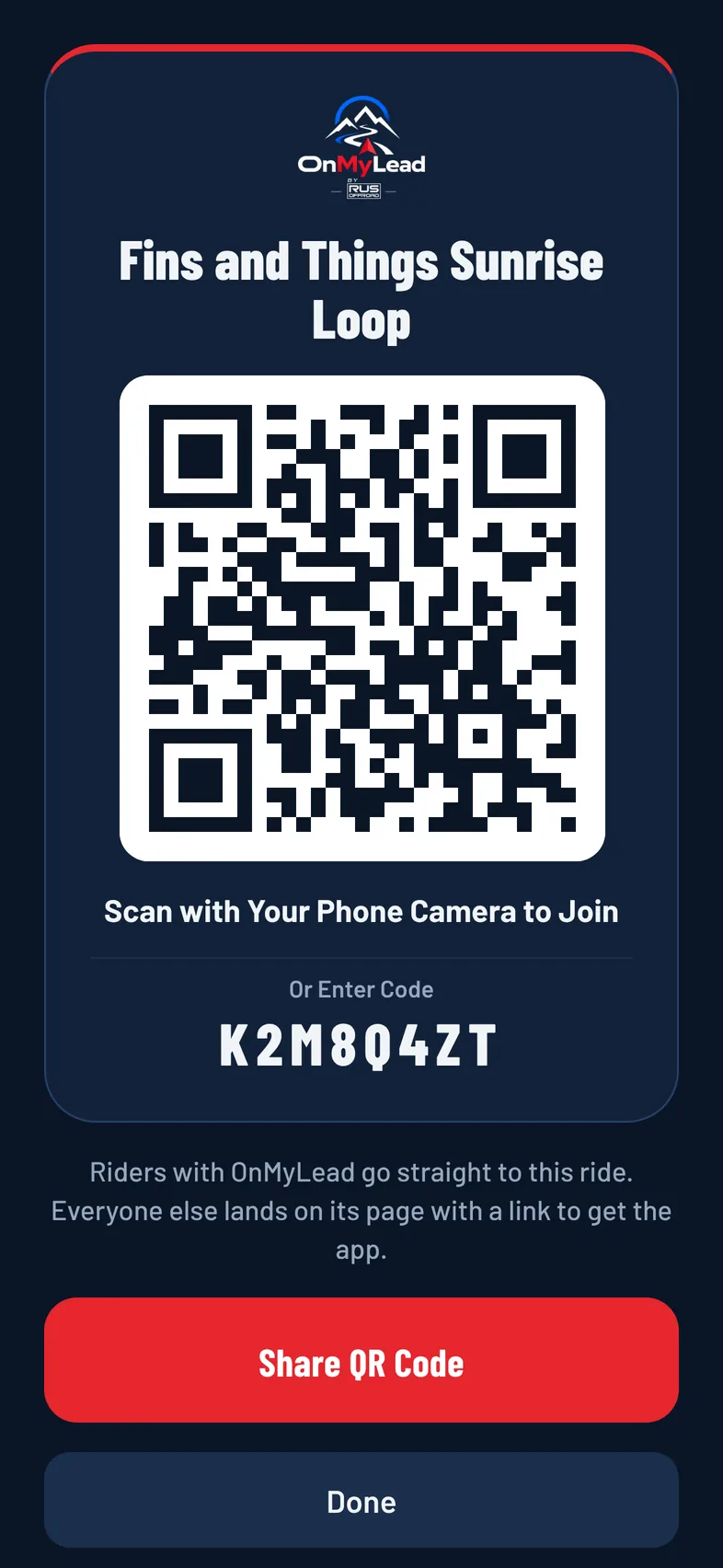
Show Your Ride's QR Code
- Open the ride page. Right after creating a ride, the invite card is at the top. Later, tap Riders to find it.
- Tap Show QR Code, or tap the small QR code on the card.
The QR code opens full screen with the ride name and the invite code under it (Or Enter Code), so riders can type the code if their camera won't scan. Tap Done to close it.
Share the QR Code as a Picture
- Show the QR code full screen.
- Tap Share QR Code.
- Pick how to send it: text, email or any app.
It sends a picture of the QR code card along with the ride link. You can print it or post it for a club ride.
Scan a QR Code to Join
- Open your phone's Camera and point it at the QR code.
- Tap the link that appears.
- If you have OnMyLead, you go straight to the ride. If not, the ride's page opens on onmylead.com with a button to get the app.
- Tap Join Ride. See Join a Ride.