
Use Ride Chat
Message everyone on the ride or just the leader, post announcements, and clear or resolve your own messages.
Every ride has its own chat for the riders on it. Use it to plan before the ride and check in after. Only riders who have joined the ride can read or post in it.
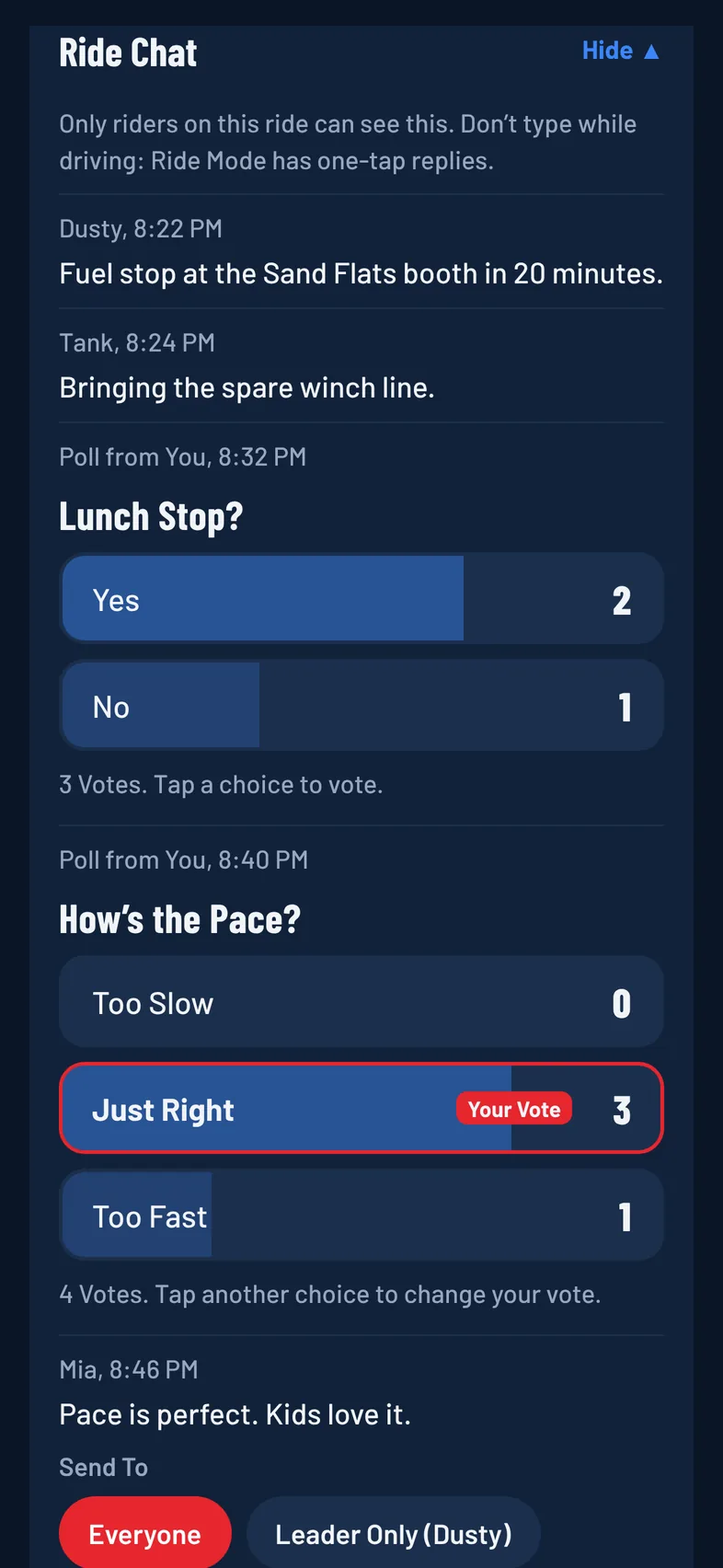
Open Ride Chat
- Open the ride from the Rides tab.
- Tap Chat in the row of sections under the ride's name.
Tap Ride Chat at the top of the card to hide or show the messages. Hidden, it shows the message count and the latest message. The chat shows the newest 30 messages. To see older ones, tap the button above them, such as Show 12 Earlier.
Send a Message
- Under Send To, pick who it's for:
- Everyone: every rider on the ride.
- Leader Only: only you and the ride's leader see it. The leader's name is shown on the option.
- Type in the Message box.
- Tap Send to Everyone or Send to Leader.
Your message shows in the chat straight away as Sending…, then Sent. If it doesn't go through, it stays as Not Sent with Retry and Remove.
Messages can be up to 500 characters. If you send more than 10 messages in a minute, you're asked to wait a minute.
Post an Announcement
Organizers and co-organizers can post an announcement for the whole group.
- Under Send To, pick Announcement (Pinned, Read Aloud).
- Type in the Announcement box.
- Tap Post Announcement.
The newest announcement is pinned near the top of the ride page. In Ride Mode it shows as a yellow banner and is read aloud, so riders don't have to look at their phones. Tap the banner to hear it again.
Clear or Resolve Your Own Message
- Tap ••• next to a message you sent.
- Choose one:
- Mark Resolved: the message gets a green Resolved tag for everyone. Tap Reopen to undo it. Marking your latest announcement resolved takes it off the pinned spot.
- Clear: removes the message from the ride chat for everyone. Tap Clear again to confirm. This can't be undone.
Only the person who sent a message can clear it or mark it resolved.
Quick Replies in Chat
Quick replies sent from Ride Mode, like On My Way, also show in the ride chat in italics.
Message Pop-Ups
When a new message arrives on a ride you're on, a pop-up slides in at the top of the screen, whatever screen you're on.
- Tap the pop-up to open the ride.
- Tap Dismiss to close it. When several are waiting, it shows +2 More and Dismiss All.
- Pop-ups close on their own after a few seconds, and announcements stay up a little longer.
- If the sender clears a message or marks it resolved before you see it, its pop-up goes away.
Pop-ups and notifications follow your choices in Notifications. See Notification Settings.
Report or Block Someone in Chat
Press and hold someone else's message, then tap Report Rider or Block Rider. See Report or Block a Rider.