
Send a Status or Quick Reply
Tell the whole group what's happening with one tap, see who got it, and take it back if you tapped by mistake.
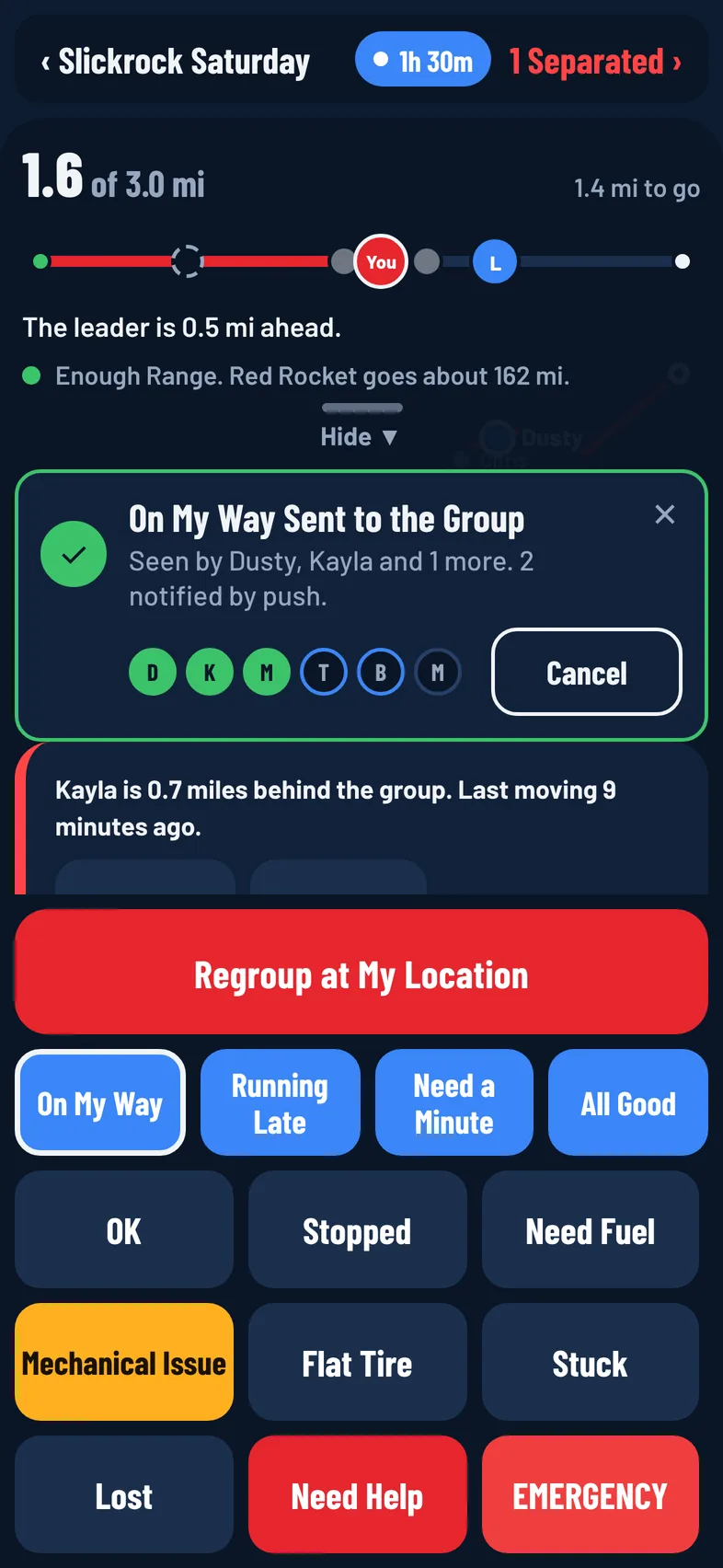
Ride Mode has big buttons so you can tell the group what's going on without typing. Every rider on the ride sees your tap, and you can see whose phone has it.
Quick Replies
The four blue buttons send a short message to the group. They also show in the ride chat.
- On My Way
- Running Late
- Need a Minute
- All Good
Status Buttons
The grid below sets your status for the group:
- OK
- Stopped
- Need Fuel
- Mechanical Issue
- Flat Tire
- Stuck
- Lost
- Need Help
- EMERGENCY
Need Help sends right away and shows in red for the group. EMERGENCY asks you to confirm first. See Emergencies and Safety.
Send a Status
- In Ride Mode, tap a quick reply or a status button.
- A card appears above the buttons. It says Sending, then Sent to the Group.
- Watch the row of lights on the card, one per rider, with their first initial:
- A solid green light means that rider's app has it.
- A blue ring means a notification went to their phone, but their app hasn't shown it yet.
- An empty light means it hasn't reached them yet.
Under the headline, the card spells it out, for example "Seen by Sam and Alex. 2 notified by push." or "All 5 riders got it." Tap ✕ to hide the card. It also goes away on its own after 10 minutes.
Take It Back
Tapped the wrong button? Tap Cancel on the card. The status or quick reply is taken back for everyone, the group is told to ignore it, and the notification they got is replaced with one saying you cancelled it.
With No Signal
If your tap can't go out within a few seconds, the card says Is Waiting for Signal. Your tap is saved on your phone and sends by itself when you get service, stamped with the time you tapped it. Tap Retry Now to try again right away, or Cancel to drop it.
Clear Your Status
While your status is anything other than OK, a card on your screen says Your Status and what you sent, with a reminder that the group sees it until you mark it resolved. Tap Resolved, I'm OK when you're sorted. This sends OK to the group.
Mechanical Issue
Mechanical Issue is for a machine that has broken down.
- Your spot shows on the map with an amber wrench, even if you aren't sharing your location. It uses where you were when you tapped.
- The leader, tail gunner and organizers hear it read aloud the moment you tap it, and it stays on their screen until you send another status.
- Your screen shows Mechanical Issue with Fixed, I'm OK. Tap it once you're rolling again.
Mechanical Issue and EMERGENCY stay on screen even when you fold the bottom panel away.
When Another Rider Taps a Status
- A card shows their name, their status and how long ago they tapped it, such as "Sam: Flat Tire, 2 min ago". Tap Navigate to get directions to them, or ✕ to hide it on your screen only.
- Calls drop off the list after 30 minutes. A Mechanical Issue stays until that rider sends another status.
- You get a notification on your phone. Need Help and EMERGENCY alerts are always on, even in quiet hours. Other statuses and quick replies follow your Rider Status setting. See Notification Settings.
Regroup at My Location
Organizers, co-organizers and leaders see a Regroup at My Location button above the quick replies. Tap it to set a regroup point where you are.
- Everyone on the ride sees a yellow pin on the map and a yellow banner, Regroup point set. Tap to navigate, and hears "Regroup point set."
- Tapping the banner opens directions to the regroup point.
- Setting a new regroup point replaces the old one.
Leaders can also tap Regroup on a separation alert. See Ride Bubble.