
Create a Ride on the Website
Plan a ride on onmylead.com from your computer, drop the meeting point on a map, and find it in the app on your phone as soon as you save.
You can plan a ride on the big screen at onmylead.com. It's the same ride as one made in the app: the ride, its route and its stops show up in the OnMyLead app on your phone or tablet as soon as you save. Ride Mode and live tracking stay in the app.
Create a Ride on the Web
- Go to onmylead.com and click Create a Ride on the Web.
- Sign in with your OnMyLead account if you aren't already. You go straight to Create a Ride after signing in.
- Pick Public or Private under What Kind of Ride?
- Fill in the Ride Name, the day under When, and the Meet At time. Click Calendar, then type the date (such as 06/12/2027) in Type a Date or click it on the calendar. Click the month's name to jump to another year and month. Any day from today up to three years out works. For Meet At, click the time, then click AM or PM, the hour and the minute; no typing needed. You can also press Tab to move between them and Enter to pick.
- Set the Meeting Point: type a park, trailhead, town or address in Search a Place or Address (just above the map) and pick it, or click the satellite map to drop the pin, then drag the pin to fine-tune it. You can also use your location or type coordinates, and the pin moves there.
- Under The Route, pick Mapped or Freeride.
- Fill in anything else you want, then click Create Public Ride or Create Private Ride.
The rest of the form works the same as in the app. See Create a Ride for every option.
Draw the Route on the Web
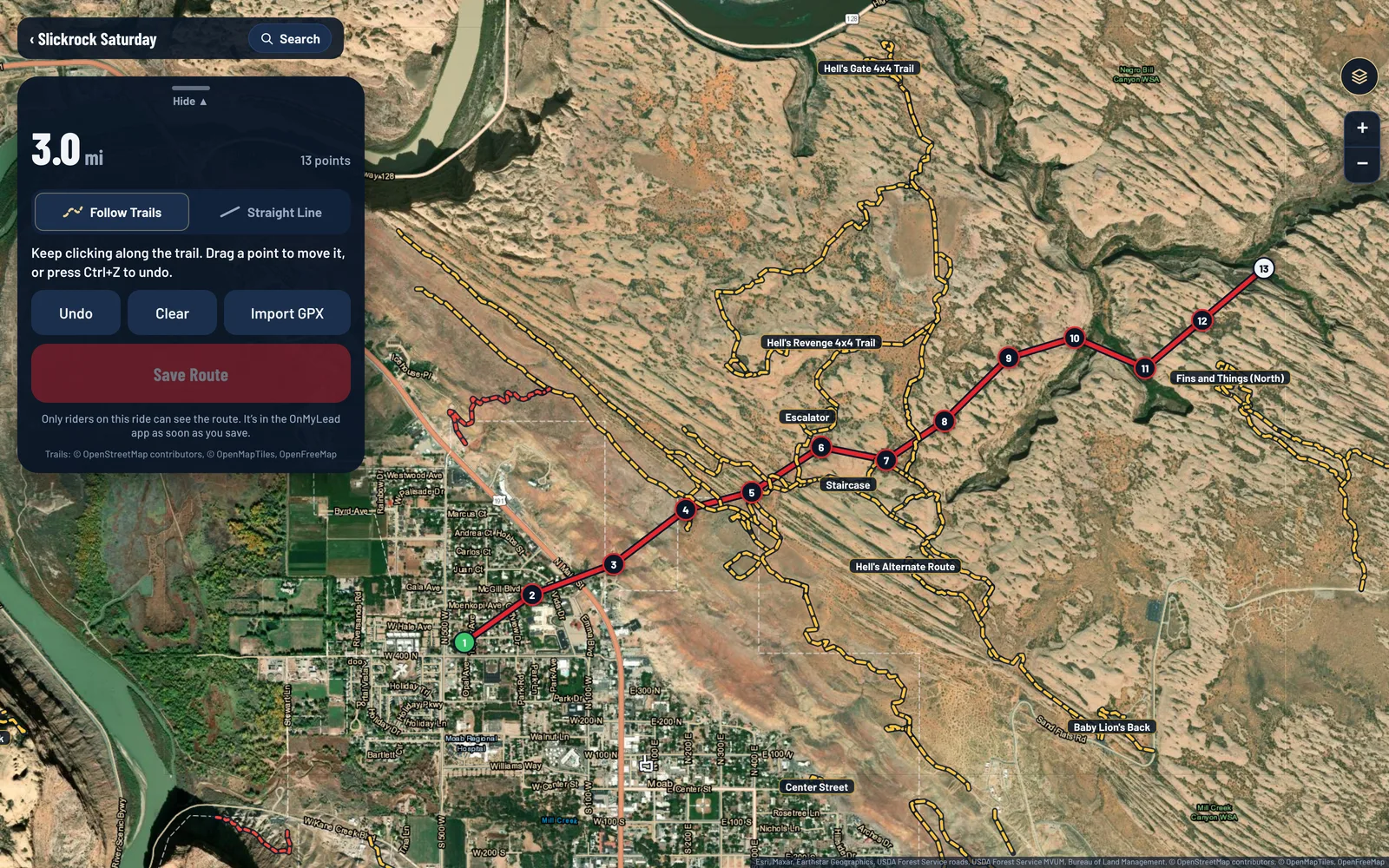
If you picked Mapped, the route builder opens after you create the ride. Click along the trail and the route follows it. Drawing a route is free. Importing a GPX file is a Pro feature. See Build a Route and Free and Pro.
To find a trailhead or park by name while you draw, click Search at the top of the map and pick a result. The map jumps there.
You can also add numbered planned stops for fuel, lunch or camp. See Waypoints and Planned Stops.
Share It
After saving, your ride page shows the invite code, a QR code and share buttons, the same as in the app. See Invite Riders.